Shopware 6
Make sure to check the upstream documentation on more details about the Shopware 6 Mailer.
Shopware gives you two options to configure an SMTP server:
- Using the Administration Interface
- From Environment Variables
Using the Administration Interface
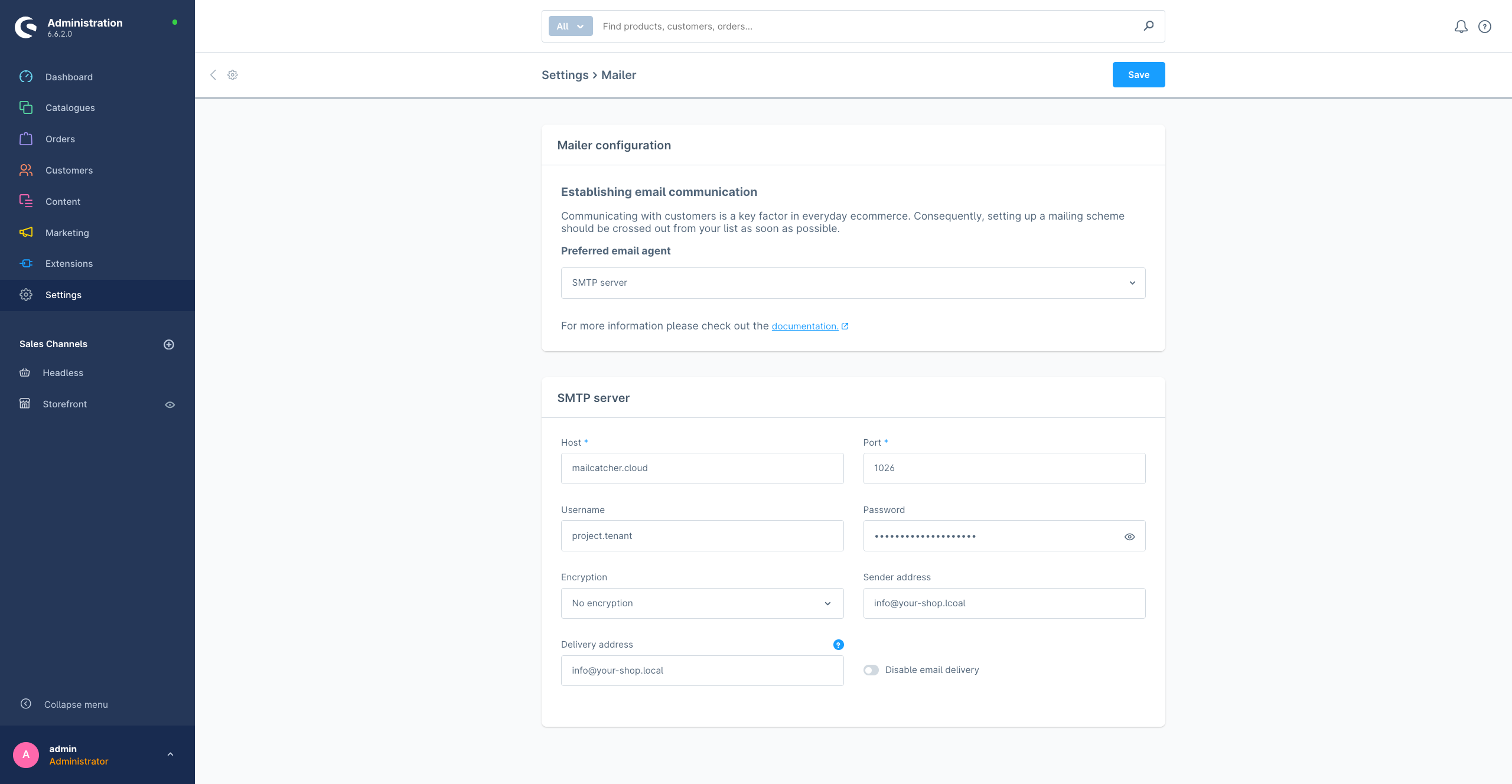
When you change the Mailer configuration to SMTP Server in Settings > Mailer, you can enter the SMTP server details directly in the Administration interface.
From Environment Variables
Shopware reads the MAILER_DSN environment variable to configure the SMTP server.
You can copy the DSN from your Mailcatcher project settings and set it in your environment.
Example DSN:
MAILER_DSN=smtp://your-project-username:your-project-password@mailcatcher.cloud:1027
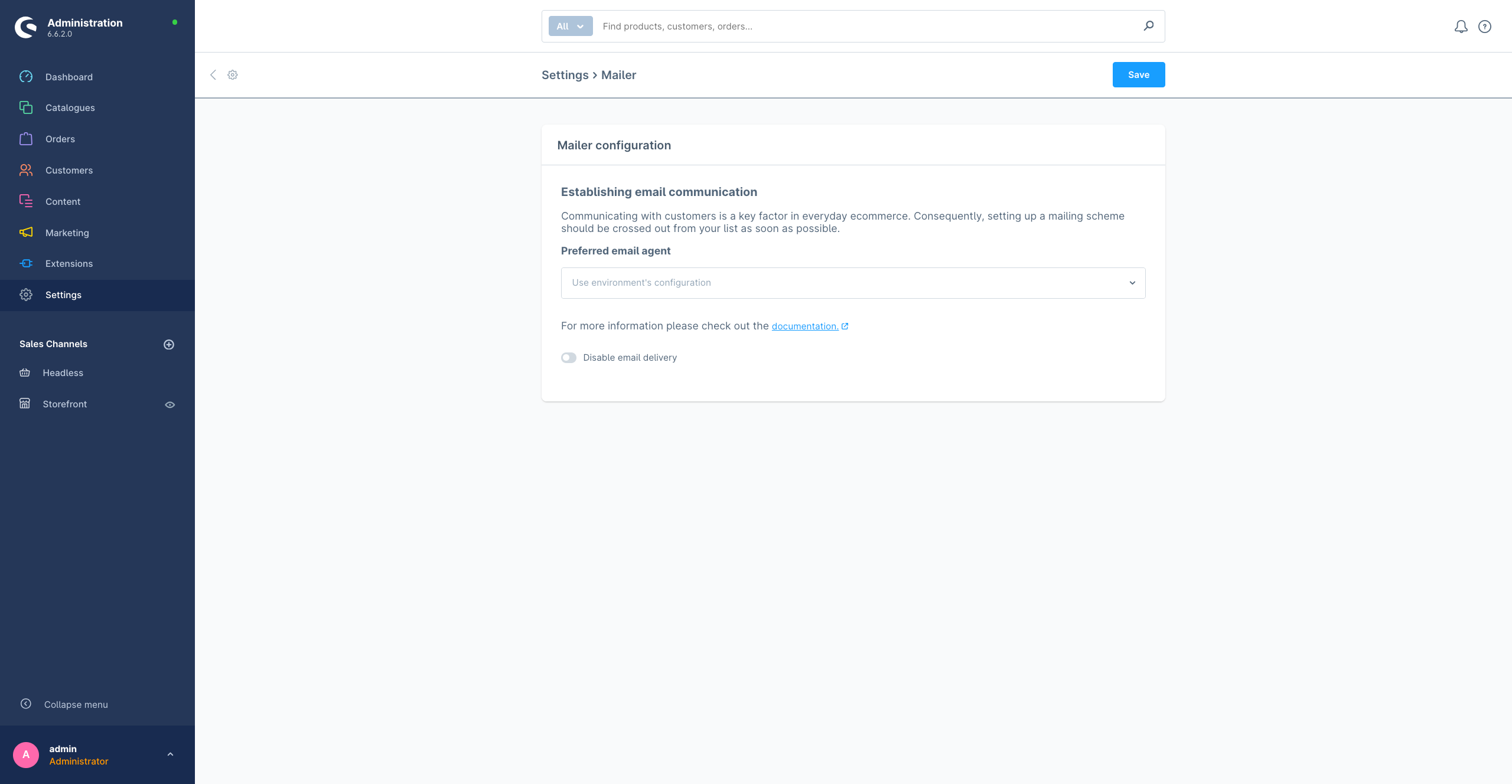
Make sure to set the Mailer configuration to Use environment's configuration in the Administration in Settings > Mailer
Testing the Integration
The easiest way to test emails in Shopware 6 currently, is to open an email template in the Administration - the Customer registration in this case. There you click the paper plane icon to open the "Send test email" tab.
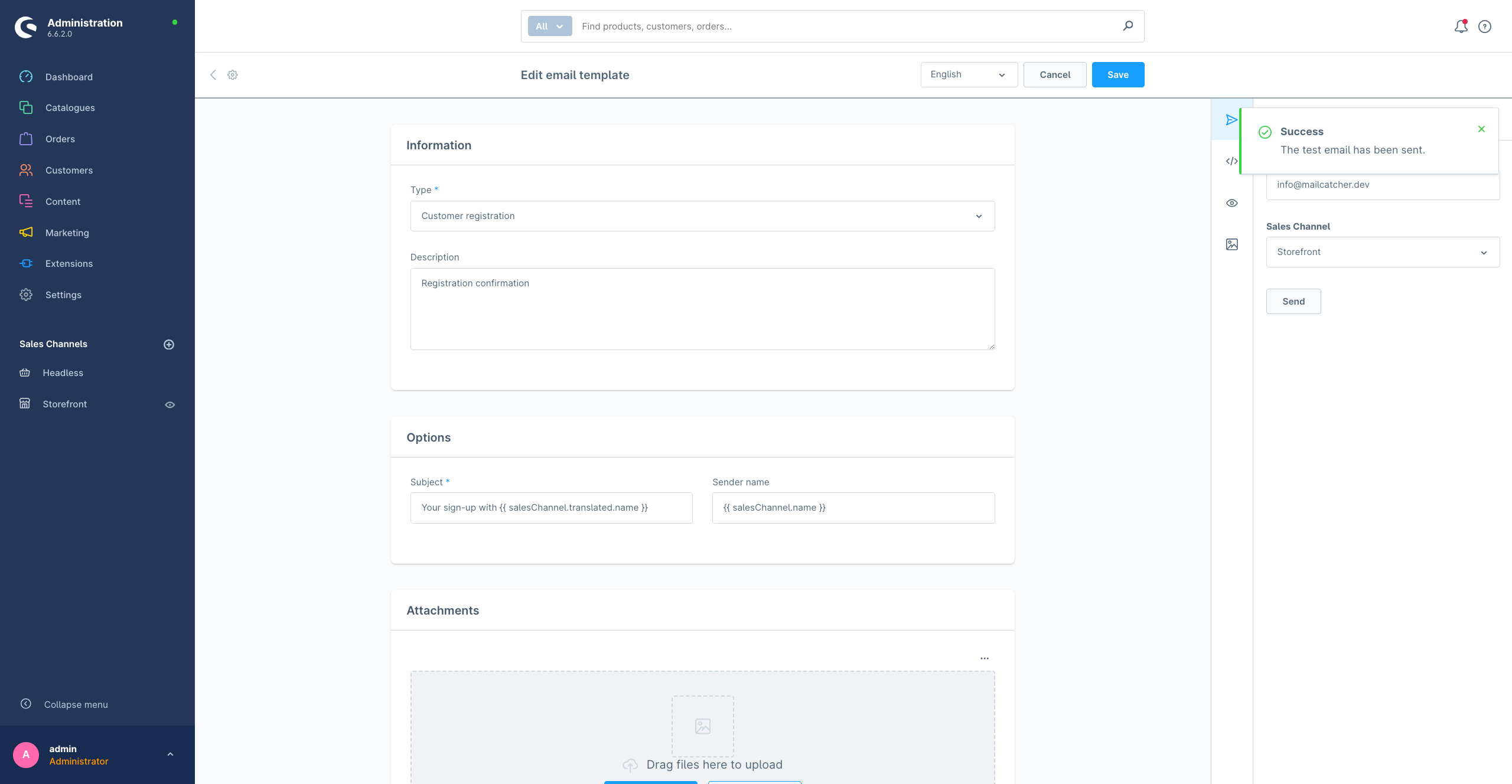
Here you can enter an email address to send a test email. Since you are using Mailcatcher, the email will not be sent to the real address, but captured in your Mailcatcher project.
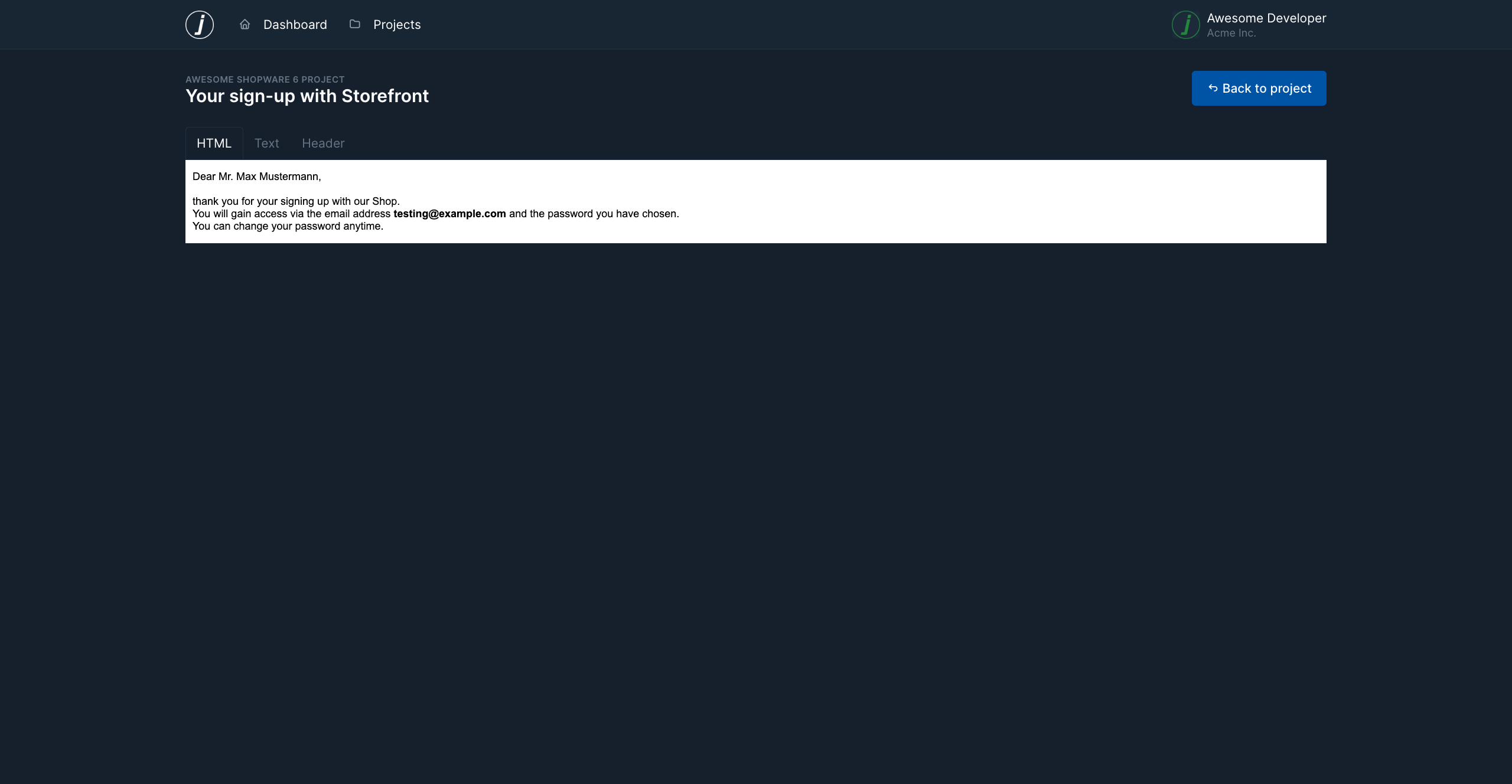
In the case of an unmodified Customer Registration template, it will look like this in Mailcatcher: